Generate reports
Generate an impact report from your Vulnlog file and share it with people who don’t read YAML, such as your customers, auditors, and managers. The report is a single HTML file that shows each vulnerability with its state, verdict, analysis, and affected releases.
Before you start
-
A Vulnlog file, for example
acme-shop.vl.yaml. The report includes entries in every state, so you don’t need to finish triage first.
Generate and share the report
-
Generate the report:
$ vulnlog report impact acme-shop.vl.yaml
Wrote: vulnlog-impact-report.html
To choose the file name, add
-o, for example-o acme-shop-impact.html. -
Open the file in a browser and check the content. It works offline and loads nothing from the internet.
-
Share the file. Vulnlog doesn’t host or publish reports, so put the file where your readers already look:
-
Attach it to the release, for example as a release asset on GitHub or GitLab.
-
Publish it on your website or documentation site, at a stable URL that you can give customers.
-
Send it to the person who asked.
-
-
Generate the report again whenever the Vulnlog file changes, and replace the shared copy.
This is the report for Acme Shop:
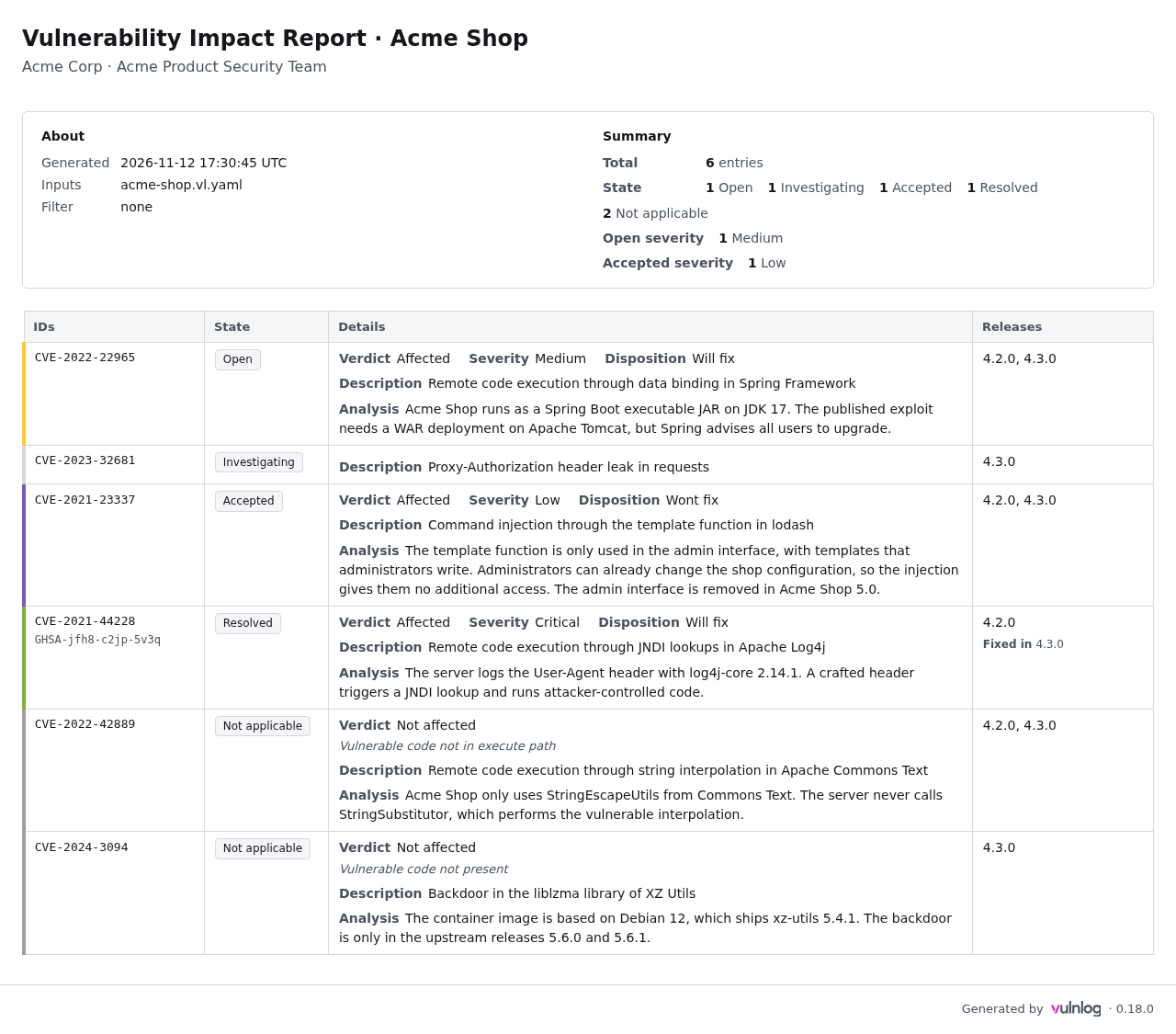
To learn to read the report, follow the tutorial Read the impact report.
Variants
If your readers use one release
Pass --as-of with the release, for example --as-of 4.3.0.
See Find what affects a release.
If your readers only need some entries
Filter by state, verdict, or disposition.
Repeat an option to include several values.
This report shows the risk Acme Shop still carries, the open and the accepted entries:
$ vulnlog report impact acme-shop.vl.yaml --state open --state accepted -o carried-risk.html
Wrote: carried-risk.html-
--disposition "wont fix"lists the risks you accepted, for a periodic risk review. -
--verdict "not affected"lists what you ruled out and why, for an auditor. -
--tag containerlimits the report to one component.
For all options and values, see vulnlog report impact.
If you have several Vulnlog files
Pass all files.
They must have the same project values:
$ vulnlog report impact acme-shop.vl.yaml acme-shop-3.vl.yaml -o all-lines.html
Wrote: all-lines.html
For how Vulnlog combines the files, see Input files.
If you use Docker
Mount the current directory to /work:
$ docker run --rm -v "$PWD:/work" ghcr.io/vulnlog/vulnlog:0.19.0 report impact acme-shop.vl.yamlFor the user ID the container runs as, see Install Vulnlog.
If you use the Gradle plugin
Run vulnlogImpactReport.
It writes build/vulnlog/vulnlog-impact-report.html by default:
$ ./gradlew vulnlogImpactReportFor the filter settings of the task, see Gradle plugin.
If you want a current report on every change
Generate the report in your pipeline and keep it as a build artifact. See Run in CI pipelines.
Check the result
Open the report and look at the About section.
Inputs names the Vulnlog files, and Filter names the filters you used, or none.
If either is wrong, the report shows the wrong entries.
For what the states mean, see States.